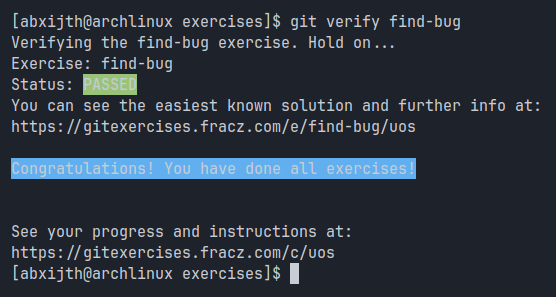
Website: gitexercises.fracz.com
A practical task to learn Git inside out — commits, branching, rebasing, and recovery.
Here’s a short walkthrough of what I did and what I learned.
Setup
git clone https://gitexercises.fracz.com/git/exercises.git
cd exercises
git config user.name "Your name here"
git config user.email "Your e-mail here"
./configure.sh
git start
Sub - Tasks
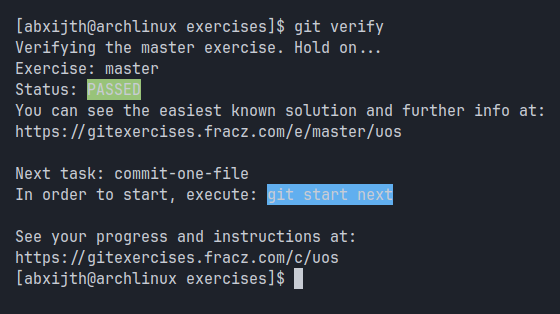
master
- description
The first exercise was to push the commit created after running the git start command. After initializing the repository, I ran git verify and successfully passed the very first challenge.
- commands used
git start
git verify
- completion screenshot
commit-one-file
- description
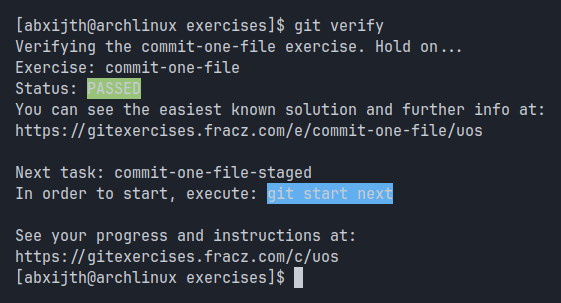
In this exercise, two files — A.txt and B.txt — were created in the project’s root directory. The goal was to stage and commit only one of them while leaving the other untracked. Instead of pushing to a remote repository, the solution was verified locally using the git verify command.
- commands used
git add A.txt
git commit -m "Commit A.txt file"
- completion screenshot
commit-one-file-staged
- description
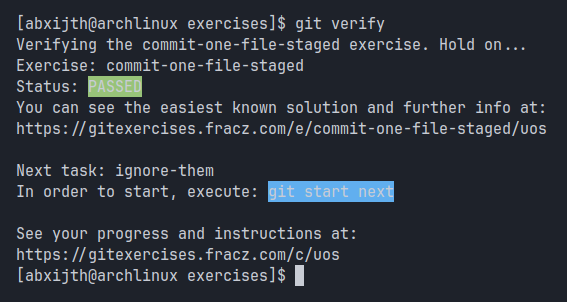
In this exercise, two files — A.txt and B.txt — were created in the project’s root directory and both were initially added to the staging area. The challenge was to commit only one file while keeping the other staged but uncommitted. The solution was then verified locally using the git verify command.
- commands used
git reset A.txt
git commit -m "Commit B.txt file"
- completion screenshot
ignore them
- description
In this exercise, the goal was to configure Git to ignore unnecessary or generated files. This involved creating and committing a .gitignore file that excluded:
All files with the .exe extension
All files with the .o extension
All files with the .jar extension
The entire libraries/ directory
These patterns ensured that build artifacts and external dependencies were not tracked in version control. Sample files were already provided to test the configuration, and the setup was verified using the git verify command.
- commands used
echo *.o > .gitignore
echo *.exe >> .gitignore
echo *.jar >> .gitignore
echo libraries/ >> .gitignore
git add .gitignore
git commit -m "Ignore binary files"
- completion screenshot
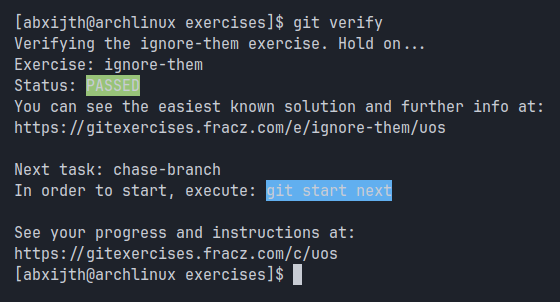
chase-branch
- description
So basically i was given two branches chase-branch and an escaped branch, this escaped branch had 2 more commit than chase-branch. Therefore what i had t do was make this chase-branch point to the latest commits from escaped branch. So what i did was i merged the escaped branch into chase-branch from chase-branch to get the lates commits from escaped branch into chase-branch.
- commands used
git merge escaped
- completion screenshot
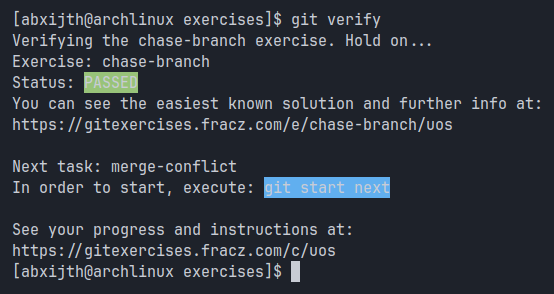
merge-conflict
- description
In this exercise, i was assigned to merge another-piece-of-work branch to the current branch but i got a merge conflict, so i had to manually resolve the merge conflict by editing the equation.txt file.
- commands-used
git merge another-piece-of-work
nvim equation.txt (resolve conflict)
git add equation.txt
git commit -m "conflict resolved"
git verify
- completion screenshot
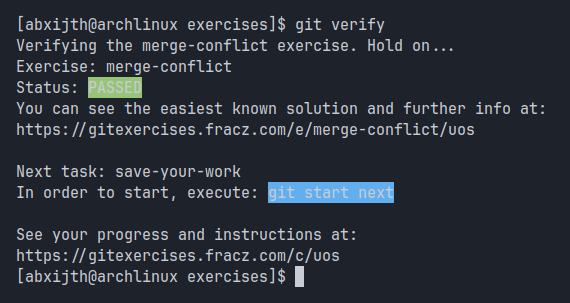
save-your-work
- description
While working on an ongoing issue, a bug was discovered that required an immediate fix. Since my working area was messy, I stashed my changes using git stash, fixed the bug in bug.txt, and committed the bugfix. Then I restored my work using git stash pop, finished it by adding: Finally, finished it! and committed the completed work.
- commands used
git stash
git add bug.txt
git commit -m "bug fixed"
git stash apply
git add .
git commit -m "Finish my work"
git verify
- completion screenshot
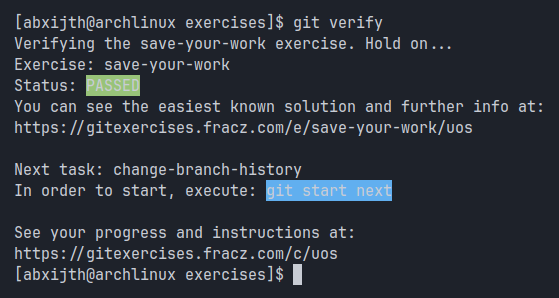
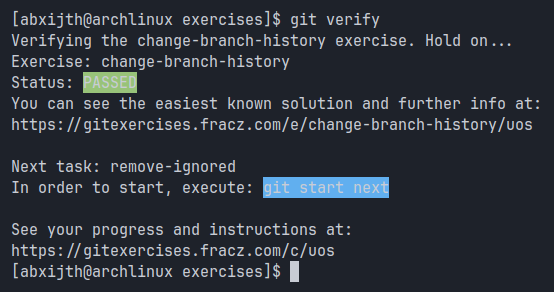
change-branch-history
- description
While working on an issue, I was asked to fix a recent bug. I temporarily set aside my ongoing work, fixed the bug on a separate branch, and then reordered the commits using git rebase so the bugfix appeared before continuing my main task. This ensured the repository reflected the bugfix first while preserving my original work.
- commands used
git rebase hot-bugfix
git verify
- completion screenshot
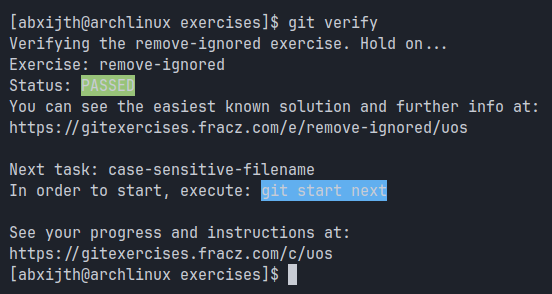
remove-ignored
- description
The file ignored.txt was already tracked in Git, even though a .gitignore rule was added to ignore it. The goal was to stop tracking this file so that future changes would no longer appear in version control, without deleting it from the working directory.
- commands used
git rm ignored.txt
git commit -am "remove ignored.txt which should be ignored"
- completion screenshot
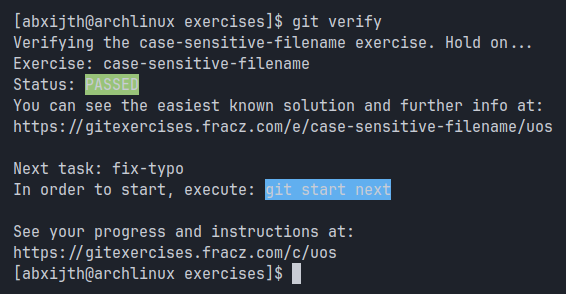
case-sensitive-filename
- description
After committing File.txt, I realized the filename should be all lowercase (file.txt). To fix this, I first soft-reset the last commit to move it back to the staging area, then renamed the file to file.txt, added it back to the staging area, and committed the change again. This preserved the content while correcting the filename in Git history.
- commands used
git reset --soft HEAD~1
git restore --staged File.txt
mv File.txt file.txt
git add file.txt
git commit -m "file.txt"
git verify
- completion screenshot
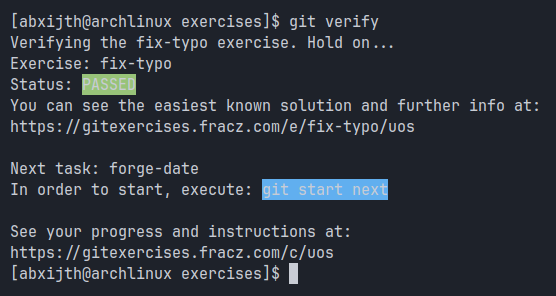
fix-typo
- description
file.txt was committed, but it contained a typo (wordl instead of world). The task was to edit the previous commit so the typo was corrected, and update the commit message accordingly, making it appear as if the file had been correct from the start.
- commands used
nvim file.txt
git add file.txt
git commit --amend
git verify
- completion screenshot
forge-date
- description
The work was committed later than intended. The task was to change the date of the last commit, making it appear as if it had been committed in 1987.
- commands used
git log
git commit --amend --no-edit --date="Sat Nov 8 22:50:57 1987 +0530"
git verify
- completion screenshot
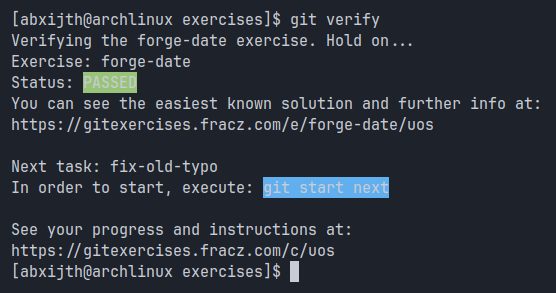
fix-old-typo
- description
file.txt contains a typographic error (wordl instead of world). Since another commit was made on top, a simple git commit –amend is not sufficient. The task was to fix the typo by amending the commit in history, while also updating the commit message appropriately.
- commands used
git rebase -i
nvim file.txt
git add file.txt
git rebase --continue
nvim file.txt
git add file.txt
git rebase --continue
git verify fix-old-typo
- completion screenshot
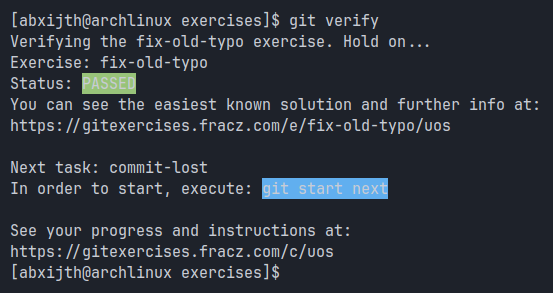
commit-lost
- description
A commit containing important work was amended, but the wrong changes were accidentally committed. Since the original version is no longer in the visible history, the task was to locate the first version of the commit in the repository, force the commit-lost branch to point to it, and verify the solution.
- commands used
git reflog
git reset --hard 81355a3
git verify
- completion screenshot
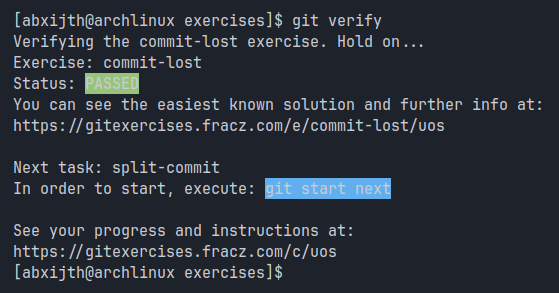
split-commit
- description
Both first.txt and second.txt were committed together in a single commit by mistake. The task was to split the commit so that first.txt is in the first commit and second.txt is in a separate second commit. So i used git reset command to go to the stage where both files were not added and not committed.
- commands used
git reset HEAD^
git add first.txt
git commit -m "first.txt"
git add second.txt
git commit -m "second.txt"
git verify
- completion screenshot
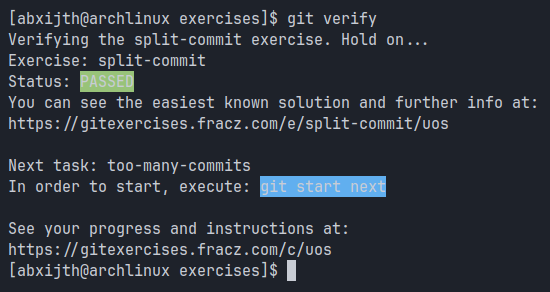
too-many-commits
- description
Two commits were created while working on an issue, each introducing very small changes. The task was to squash the last two commits into a single commit to keep the project history clean. The git log -2 command was used to inspect the last two commits before performing the squash.
- commands used
git log -2
git rebase -i HEAD^^
git verify
- completion screenshot
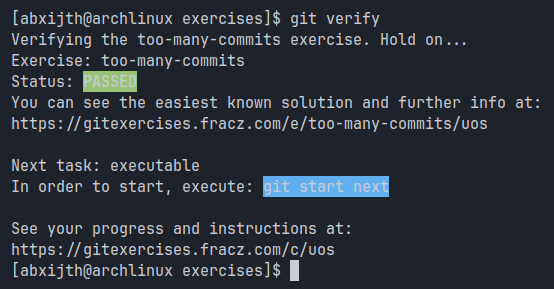
executable
- description
A simple bash script (script.sh) was created, but it lacked execute permissions on Unix, preventing it from being run with ./script.sh. The task was to add the executable bit for script.sh in Git history so that it could be executed without manually running chmod +x.
- commands used
git log
git reset --soft HEAD~1
git restore --staged script.sh
git add --chmod=+x script.sh
git commit -m "create script.sh"
git verify
- completion screenshot
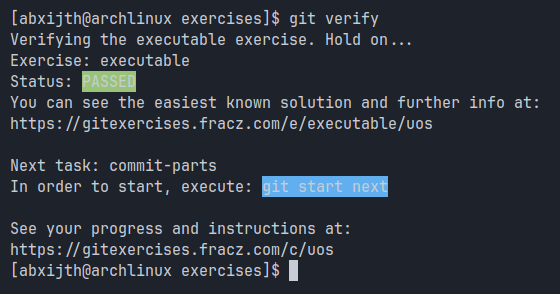
commit-parts
- description
While working on an issue, all changes were initially staged as a single commit, but they needed to be split into two. Since the changes were in a single file, the task was to commit lines containing “Task 1” in the first commit and the remaining changes in a second commit, effectively splitting the work within the same file. I used git add -p command to view and select from the hunk by which i could add only those lines which contained “Task 1” and commit it as the first commit then later i added the rest as the second commit.
- commands used
git add -p
git commit -m "first commit"
git add file.txt
git commit -m "second commit"
git verify
- completion screenshot
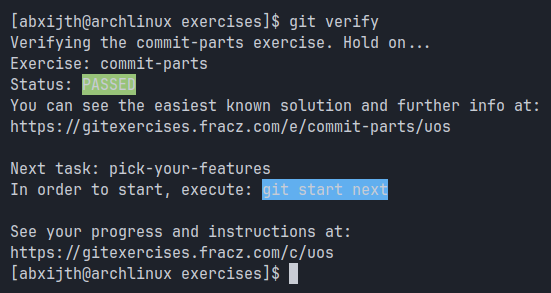
pick-your-features
- description
In this exercise, i had pick-your-features branch as the head branch and i had 3 separate feature branches a, b, c. so what i wanted was to have all these features as single commit in my pick-your-features branch. So i used the combination of merge and squash commands to do the same.
- commands used
git merge --squash feature-a
git commit -m "feature-a"
git merge --squash feature-b
git commit -m "feature-b"
git merge --squash feature-c
nvim program.txt (resolve merge conflict)
git add program.txt
git commit -m "all three features committed"
git verify
- completion screenshot
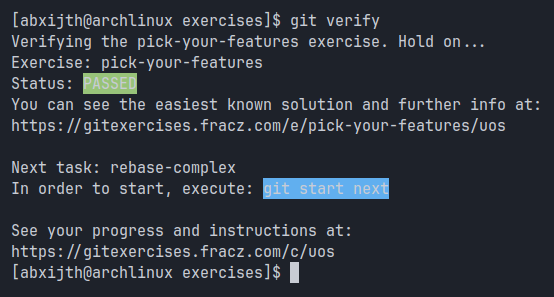
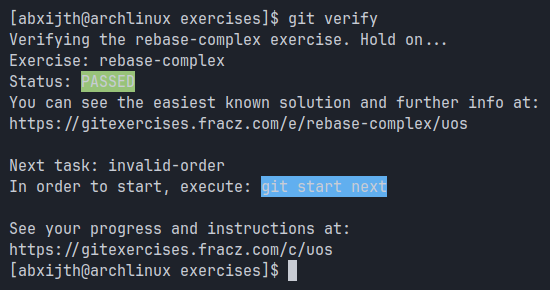
rebase-complex
- description
The goal was to rebase only the bugfix commits (H and I) from the rebase-complex branch onto your-master, excluding the work from issue-555. This was done using
git rebase --ontowhich allowed me to move a branch to a different place.
- commands used
git rebase issue-555 --onto your-master
git verify
- completion screenshot
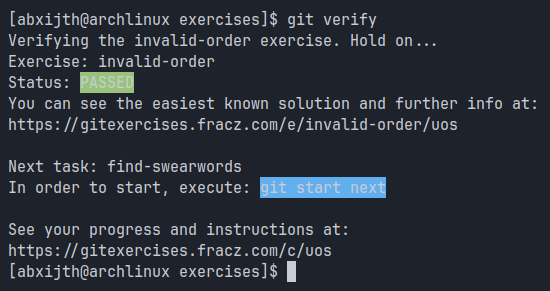
invalid-order
- description
I had two commits in the wrong order and needed to switch them. I just used interactive rebase to reorder the commits and fix the history.
- commands used
git log -2
git rebase -i (swapped commit ids)
git verify
- completion screenshot
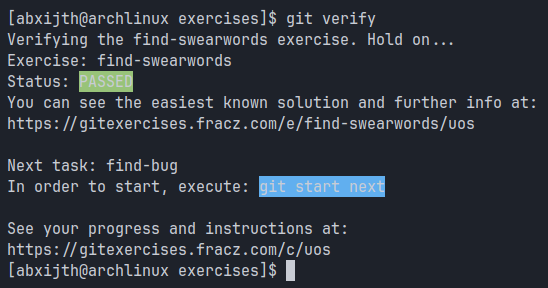
find-swearwords
- description
So, the job was to go through the project’s whole history and swap out the word “shit” for “flower” in two files, words.txt and list.txt. It was basically a cleanup to get rid of that bad word everywhere it showed up, even in old versions of the files.
- commands used
- completion screenshot
find-bug
description
commands used
- completion screenshot